No registration. No internet connection required by the plugin. Beta valid through 15 December 2026.
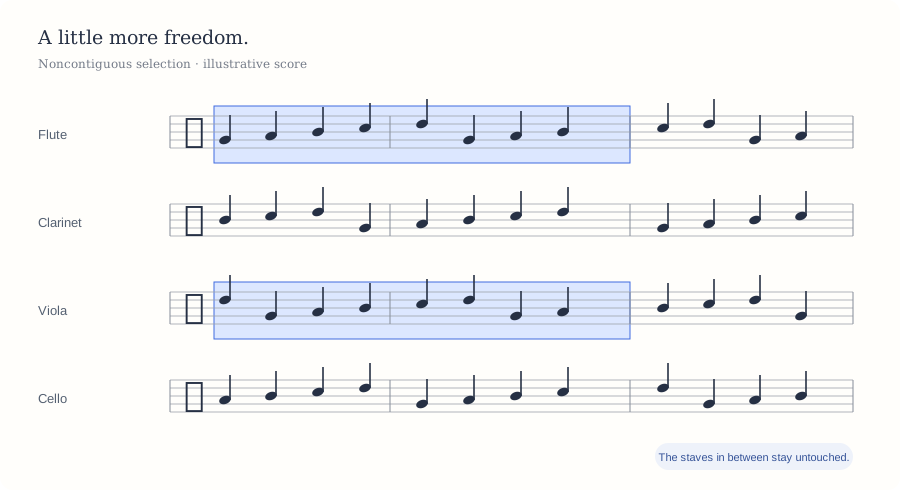
Choose the staves you need. Keep the music in between untouched. Illustration — not a Finale screenshot.
Inside FinaleNo separate app to launchYour original app stays intactCompanion is a separate pluginApple Silicon + Intel binaryPhysical Intel testing pendingOffline by designNo account or background service
01 / Select & edit
Your music. Your selection.
Work across exactly the staves you need, even when they are not next to each other. Familiar musical precision, with more room to move.
A MORE FLEXIBLE SELECTION
Not every part sits next to the next.
Hold Tab and click to add noncontiguous staves or extend a selection in either direction. Click inside it to shorten the nearest edge.
Selections follow the actual note and rest positions, including multiple layers. Select three semiquavers without being forced to include the fourth.
Click empty space to clear. Tab-click near a barline, or Tab-double-click inside a measure, to select that full measure across the chosen staves. Prefer another key? Choose it in the settings.
Select precisely.Tab + click · notes, rests and multiple layers
Feature overview · screenshot or video to be added.COPY · PASTE · DELETE
Keep the gaps. Keep your intent.
Copy from staves 1 and 3 to staves 5 and 7. The staff in between stays untouched. Use keyboard shortcuts or the Edit menu, including partial measures.
Edits respect Finale’s Use Filter settings and use a single Undo. Copying preserves the source selection.
DRAG · PREVIEW · FILTER
See where the music will land.
A live music preview follows the drag and snaps to native musical subdivisions. The pointer anchors the topmost selected staff, matching Finale’s familiar behavior.
Option + Shift-click opens the native filter dialog before copying to the clicked destination.
SEE THE WORKFLOW
A selection that travels together.
Keep separate parts together through a single edit, without touching the intervening staves.
Move the music.Noncontiguous drag preview · native filter · one Undo
Feature overview · screenshot or video to be added.
02 / Listen
Hear the parts you are working on.
Full Human Playback support, flexible starting points, and a fix for Human Playback in Scroll View Staff Sets.
Listen with expression.Selected staves · Human Playback · Staff Sets
Feature overview · screenshot or video to be added.
Selected staves. Full expression.
Listen to any combination of selected staves, including noncontiguous ones, while retaining Human Playback.
Human Playback restored in Staff Sets.
Companion lets Finale process the complete score while preserving your visible Staff Set, mixer settings and playback cursor. Select the staves and press Space with “Play selected staves only” enabled.
Start where it makes sense.
Choose the selected measure, the leftmost visible measure or a specified measure. With “Selected measure”, an empty selection falls back to the leftmost visible measure.
03 / Find your view
Less adjusting. More writing.
Fit the score or the selected staff block to the window with a quick double press. Single presses keep Finale’s native zoom settings.
⌘2 twice: fit to window.
Fit and vertically center all staves in Scroll View, or fit the page in Page View. The brief double-press interval avoids flashing through the single-press zoom first.
⌘3 twice: fit selected staves.
In Scroll View, fit the block between the topmost and bottommost selected staves. Set a maximum zoom for comfortable editing; the default is 230%.
Find your focus.⌘2 + ⌘2 · ⌘3 + ⌘3
Feature overview · screenshot or video to be added.
04 / Connect your playback
Keep your musical world in sync.
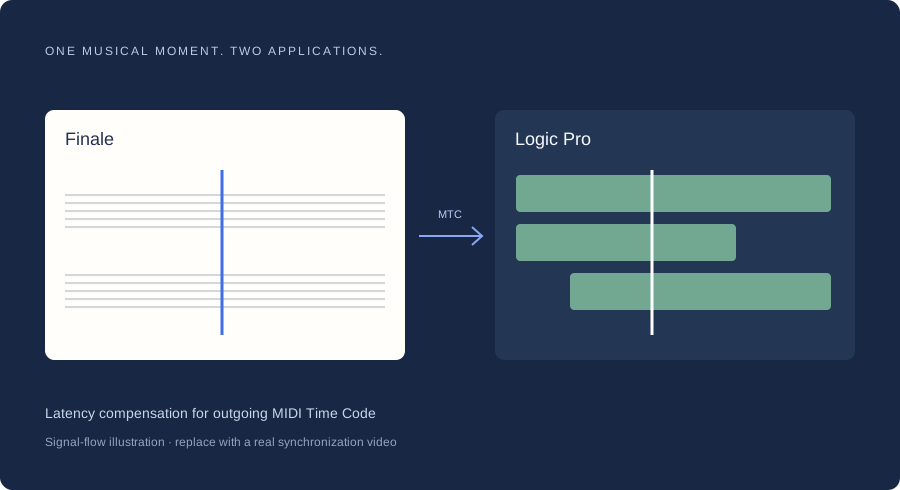
Companion compensates outgoing MIDI Time Code for the latency reported by Finale’s audio engine, helping align playback with an external MTC receiver.
Successfully tested with NotePerformer 5 and Logic Pro 12.4.
Results depend on the audio engine, routing and receiving application. This is latency compensation, not a claim of universal or sample-accurate synchronization.
Signal-flow illustration · a real Finale + Logic demonstration will go here.
05 / The everyday details
Small interruptions. Thoughtfully handled.
Follow your Mac’s audio output.
Connect or disconnect wired headphones and AirPods, or change the macOS output during Audio Units playback. Companion follows the selected device without a trip to Audio Setup.
If playback is active, Companion stops it and switches the output. Press Play when you are ready. Enabled by default on first launch; your later choice is saved.
A Scroll View that keeps up.
The refresh fix keeps staves visually synchronized while scrolling, including staves outside the visible area.
Right where you expect it.
Open Finale → Finale Companion… for individual enhancement switches. No separate application or extra menu-bar icon.
Companion works offline and remembers your settings.
Follow the sound.Speakers · wired headphones · AirPods
Feature overview · screenshot or video to be added.
One familiar window.Finale → Finale Companion…
Feature overview · screenshot or video to be added.
The first public beta
Make room for a better workflow.
Download Companion, install it in Finale’s Plug-ins folder, then restart Finale. No registration or activation account.
Installation
Save your work and quit Finale. Download and unzip the package.
Run Install Finale Companion.command. The installer verifies the supported original Finale executable, then requests administrator authorization to copy the plugin.
Open Finale again. Find the settings under Finale → Finale Companion…
Read the included Installation.txt before installing. The installer does not modify Finale.app and never closes or restarts Finale for you.
Developed and tested on macOS 27 with Finale 27.4.1. Additional user testing reported on Sonoma and under Rosetta on Apple Silicon. Physical Intel testing is pending. No Windows version is included.
Before you begin
A few practical notes.
When does the beta expire?
This beta expires on 15 December 2026.
Does Companion modify the Finale application?
No files inside Finale.app are modified. Companion is loaded as a separate plugin and integrates with Finale while it is running. Removing the plugin removes those integrations after restarting Finale.
Does it connect to the internet?
The plugin operates offline, without registration, telemetry or a background service. Your settings are saved locally.
How do I remove it?
Save your work and quit Finale, then remove Finale Companion.bundle from /Library/Application Support/MakeMusic/Finale 27/Plug-ins/. Reopen Finale. Your Companion preferences remain available if you reinstall.
Is this an official MakeMusic product?
Finale Companion is an independent plugin by RMSoft. It is not an official MakeMusic product.
Can I use it on Windows?
This beta is for Finale on macOS. A Windows version is not included.
Help shape what comes next.
When reporting an issue, include your macOS and Finale versions, Companion version, and the steps to reproduce it.